Wednesday, July 30, 2014

How to add unread mails to favorite folder in Outlook?

The following guidance will help you collect all unread email messages into an Unread Mail folder, and show the folder in your favorites.
Step 1: Shift to the Mail view by clicking the Mail in the Navigation Pane.
Step 2: Create a new search folder:
  1. In Outlook 2010 / 2013, click the New Search Folder button in the New group on the Folder tab.
  2. In Outlook 2007, click the File > New > Search Folder.

Actually there is an alternative method to create a new search folder: right click the Search Folder in Navigation Pane, and click the New Search Folder in the right-click menu.

And this method is available in all of Microsoft Outlook 2007, 2010, and 2013.
Step 2: In the New Search Folder dialog box, select and highlight the Unread mail item, and click OK.

Now an Unread Mail folder is created and shows in the navigation pane. And all unread email messages are collected into this folder automatically. Once an unread email message is opened, it will be removed from the Unread Mail folder automatically.
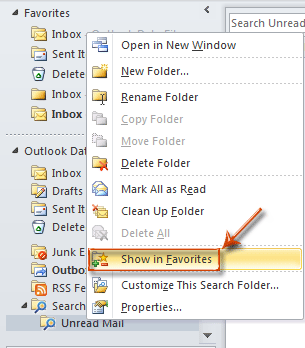
Step 3: Right click the Unread Mail folder, and click the Show in Favorites item in the right-click menu.
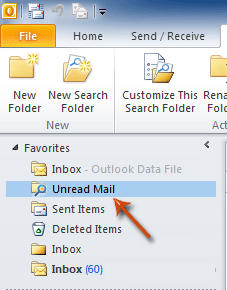
Now the Unread Mail folder is copied and added to your favorites at the top of Navigation Pane.
Thursday, January 16, 2014

How can I remotely shutdown another Windows computer?

Microsoft Windows 2000, XP (XP home users read section below) and later users can remotely shutdown another computer in their network by utilizing the shutdown command. To start the GUI version of this command click Start, Run, and in the Run line type: shutdown -i and press enter. After running this command you should see a dialog window shown in the example below.
Windows Remote Shutdown Dialog window
As can be seen in the example above, you'll have several different options to choose from in the Remote Shutdown Dialog.  First specify the name or IP address of the computer you wish to shutdown by clicking the Add button. Next, select Shutdown and keep the Warn users of the action checked if you wish to warn the user of the shutdown before it occurs. Next, in the Shutdown Event Tracker, choose the Option you wish the Event Log to show and enter a comment.

For Windows Home computers

If the remote computer you're attempting to shutdown is running Microsoft Windows Home. You'll need to enable guest remote shutdown privileges before following the above steps will work. To do this follow the below steps.
  1. Download the Windows Resource Kit to the computer you're wanting to remotely shutdown.
  2. Once downloaded and installed, copy the NtRights.exe file from the "Program Files\Windows Resource Kits\Tools" directory into the "Windows\System32" directory.
  3. After the file has been copied open a command prompt window by clicking Start, Run, and typing cmd and pressing enter. At the prompt type the below commands exactly as you see them here (unless your Windows directory is in a different path).

    cd\windows\system32
    NtRights –u Guest +r SeRemoteShutdownPrivilege
    NtRights –u Guest +r SeShutdownPrivilege
  4. If successful after typing each of the above two NtRights commands you should get a success message. Once this has been completed, exit the command prompt window and restart your computer.
Once the above steps have been completed, you should be able to remotely shutdown that computer from another Windows computer.

Unable to get remote shutdown to work

This could be caused by any of the below possibilities.
  1. The domain administrator has group policies in place to prevent remote shutdown.
  2. Remote administration or the $ADMIN share is disabled.
  3. You're logged into an account that does not have administrative privileges.

Alternative solutions

If you're still unable to get the shutdown to work properly, or wish to remotely shutdown earlier versions of Windows such as Windows 98, there are dozens of other utilities that can be installed to allow you to do this. Our alternative recommend solutions are PowerOff and PsShutdown.exe, which is part of the free PsTools suite.