Wednesday, December 14, 2011

Auto Correct Typing Errors in Gmail (Chrome Extension)


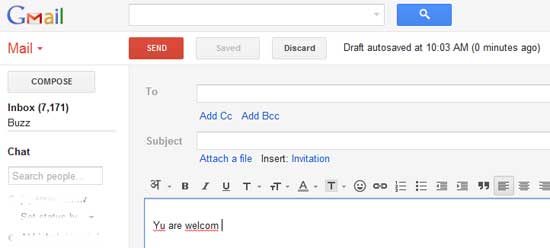
Sometimes little things can be the most annoying in our daily life, for example, typing errors that need to manually correct while composing an email message. If you’re looking for a simple solution to that, here is how to auto-correct typing errors of some common words and auto-capitalize the first letter in Gmail.
Typing-error
Before going to the subject, assume that you are using Google Chrome to open your Gmail account. Install ezAutoCorrect for Gmail from Chrome Web Store. It’ll do the hard work of auto-correcting common errors for you.
For example, the extension will convert ‘teh’ to ‘the’, ‘friend’ to ‘friend’, ‘ur’ to ‘you are’, etc and lets you add further entries to its list.
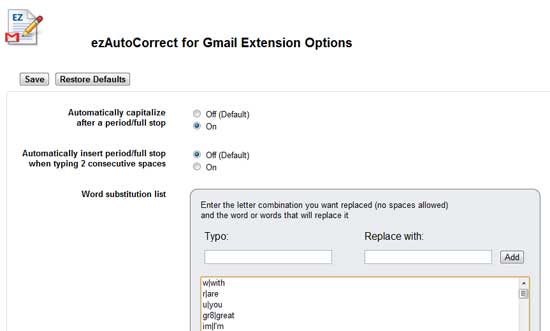
It can also automatically capitalize the first letter after a full stop. This option is disabled by default. Enable it from the extension option page.
ezAutoCorrect-for-GMail
From the extension options page, you can also create your own word substitution. For example, create different signatures where you type sig1 and the first line of the signature is automatically inserted.
Download ezAutoCorrect for Gmail from Chrome Web Store.

Easy Way to Create Bootable Windows 7 and 8 Installation USB


As USB drives are much faster than CD/DVD drive, installing operating system from a USB flash drivewould make a big difference. Windows (Vista/ 7) has its own built-in command line utility (diskpart) for creating bootable Windows installation USB, but the process is bit complicated for an average user. WinToBootic is a simple tool, which will help you quickly and easily create Windows Vista, 7, 8 and WinPE bootable Flash drives.

How to use WinToBootic for creating bootable Windows installation USB?

1. Download and install WinToBootic (for windows XP requires .NET Framework 2 for installation)
2. Insert a USB flash drive (at least 4GB) into your PC and run the tool. To format your drive, enable the option ‘Quick Format’.
Bootable-Windows
3. Drag and drop an ISO image (images of Windows 7/8/2008/Vista/PE2/PE3) (see screenshot)
Bootable-Windows-1
4. Then, click ‘Do It’ button. That’s all.
Bootable-Windows-2
Final thought: WinToBootic has a simple to use UI and fast. It will be useful, for example, if you want to reinstall your OS occasionally or to install on a netbook or ultra portable laptop that has no optical drive.
WinToBootic can be downloaded from developer’s website for free

Tuesday, November 29, 2011

Install Android 2.2 (Froyo) on your PC


The new Google Mobile operating system Android 2.2 (Froyo) comes with many cool features and performance enhancements like a faster browser with support for flash 10.1, Wi-Fi-Tethering, etc.
If you like to try out this new mobile operating system on your Windows computer, here is a brief and precise tutorial with screenshots.
1. Download and unzip the Android SDK. Run the SDK Setup exe file, then select Available Packages option shown on the left column (see screenshot).
Android-2.2-1
2. Now expand ‘Sties, Packages and Archives’ from the right column and select SDK PlatformAndroid 2.2, API 8, revision 1. Then click Install Selected button.
Android2.2-2
3. After finishing the download, select Virtual Devices option from the left column and click on theNew button. Enter a name for your virtual device and choose the Android 2.2 package from the Target drop-down list and click on the Create AVD button.
Android2.2-3
4. Now you can see your new Android device, running 2.2 in the main Virtual Devices panel (see screen-shot above). Select it, and click on Start to launch the new OS.
Android2.2-Froyo
In my system, it takes few times to fully load. However, it was a good experience to try out this new Android 2.2 (Froyo) OS on my Windows.

Create beautiful video tutorials with Cute Screen Recorder


Want to make your own how-to videos or video tutorials? The free screencasting software Cute ScreenRecorder lets you do it very easily.
This simple-to-use screen recorder can record all screen activity on your computer (in full screen mode or region mode) and create video in mp4, flv, swf and wmv formats.Cute-Screen-Recorder
Cute Screen Recorder free version includes all encoders and decoders; there is no need to install any other codec.
This application is quite easy to use: just choose full screen or region mode, video output format, sound and output directory, then click ‘Start’ button. That’s all.
Cute Screen Recorder free version can be downloaded at source.

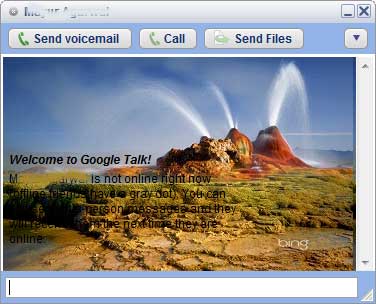
How to change the chat window background in Google talk?


Would you like to have cool backgrounds for your Google talks chat window? Here is a simple utility that will help you add any image as chat window background.
The utility called MyTheme is simple to use and compatible with any version of Google talk. It works onWindows 7 and XP.
Google-talk-background
How to use it? After installing MyTheme, run your Google Talk and select ‘Settings’. Navigate to Appearance tab and under Chat Theme, select MyTheme.
To change the background image of chat window, run the utility from Start Menu Programs. Browse the files to set the path to your desired image. Close all the opened chat windows (if any) and re-open to view the changes.
The application is clean and can be downloaded (936Kb) at source.

Simple online monitor calibration tool


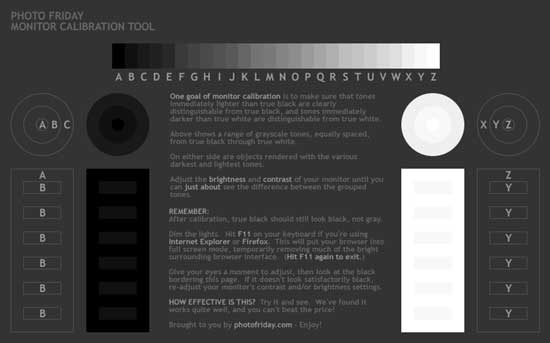
Monitor Calibration Tool is a simple online monitor calibration tool that allows you to adjust yourmonitor’s contrast and brightness at the best level.
One goal of Monitor calibration is to make sure that tones immediately lighter than true black are clearly distinguishable from true black and tones immediately darker than true white are distinguishable from true white.
monitor-callibration-tool
Just visit the site and adjust brightness and contrast of your monitor until you can just about see the differences between the grouped tones.

LayerView Free Giveaway


LayerView is a fast and lightweight packet sniffer for Windows that show you exactly what data yourcomputer is sending and receiving. A packet sniffer can be used to monitor and troubleshoot various network problems, detect network intrusion attempts and help to maintain efficient network data transmission.
LayerView is now offering its Packet Sniffer FREE for next few days (53 days). LayerView normally costs $39 and the free license meant for non commercial use only.Layerview
To get it for free, visit this giveaway page and enter your email address to receive free license.

Monday, November 28, 2011

Step by Step Guide to Install Windows XP Over an Existing Installation of Windows 7


Normally it is not possible to install Windows XP with Windows 7 installed first (dual boot). You need to install Windows XP first and then install Windows 7. But, you can install Windows XP over existing Windows 7 without affecting your Windows 7 installation; here is how you do it.
This tutorial is very simple, so any one can try this, if you have a copy of Windows 7 and Windows XP CD in hand. The only additional software required is EasyBCD utility (free) that you can downloadhere.
  1. In your Windows 7 machine, insert Windows XP CD and install it (If your Windows 7 is installed in C: drive, then install the Windows XP on any other drive, for example D: drive).
  2. Then, restart your system and you’ll see that it boots directly into Windows XP.
  3. Now, you’ll have to restore your Windows 7. Insert Windows 7 DVD and boot from it.
  4. Select “Repair your computer” option and Let the repairing finish and your system will reboot into Windows 7.
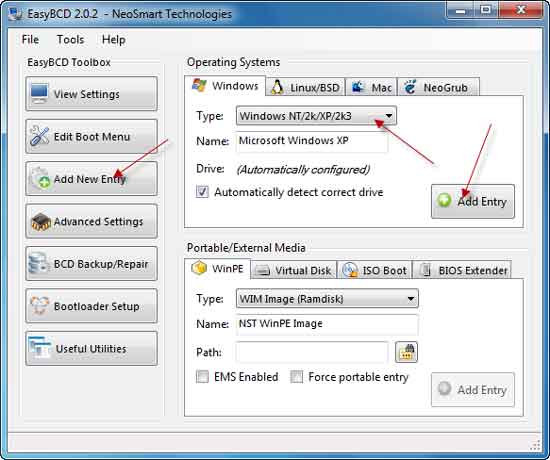
  5. Now install EasyBCD and run it. Click on the ‘Add New Entries’ tab and choose Windows tab. Select Type as ‘Windows NT/2k/XP/2k3’.
  6. Name the entry to your liking (for example Windows XP) and click ‘Add Entry ‘button to save the settings.
  7. After restarting you’ll see the dual-boot option, with Windows 7 and Windows XP as the two options.
easyBCD
Hope you’ll enjoy this tutorial (via)

The Story Of Android Operating System [INFOGRAPHIC]


Android is the fastest growing mobile operating system today. However, do you know who initiated this project and when? Now who own this, when was the first Android OS released, its current status, etc? Here is a neat infographics that depicts everything you like to know about Android OS.
Story of android
[Click on the image to view it in full size][via]

Convert and save Gmail into PDF or Word Document without any software


Some times it may be necessary to save an important email message as a PDF file or Word document for future reference.
Here is a simple tutorial on how to save Gmail into a PDF file or Microsoft Word document without using any software.
1. Log in your Gmail account and click on the setting tab (top right corner) and click  the Lab.
2. Select ‘Create a Document’ and enable this (see screenshot)Gmail-to-pdf1
3. Now a new ‘Create a document” feature has been enabled and you can see it in the right side of your Gmail.gmail-to-pdf2
4. Now open a Gmail message that you wan to save as PDF or Word document.
5. Then click ‘Create a document’ which will open your Google doc. If want, you can edit your document now. Then save and close your message.
6. Then select your newly saved document and click ‘More actions’ (see screen shot). Then select‘Export’.Gmail-topdf3
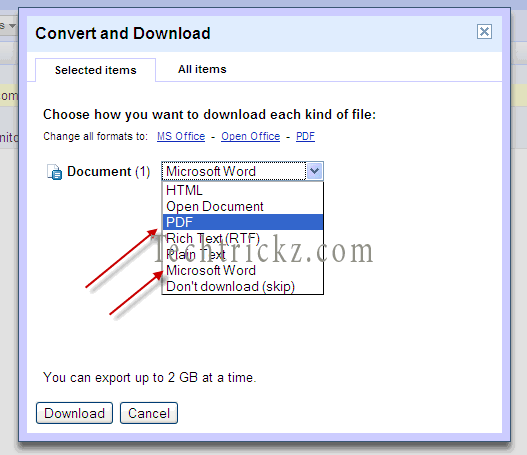
7. Now select an option from the dropdown menu (see screenshot) – PDF, Word document, OpenOffice, etc. and click ‘Download’ button to save it on your computer.Gmail-to-pdf4
The whole steps requires a few time only. Hope this tutorial will help you save your important email messages as PDF or Word document into your computer.

Avoid Internet Usage Limitations by Changing MAC Address of Your PC


If you are one of those, who often surf the internet for free in public places, you should certainly be realized the restricted internet usage time and bandwidth. After the allocated time, your Internet usagewill be obstructed. The only solution to this is to change the MAC address of your PC or Laptop, so that your system will be appeared as a new one or you appeared as a new user on the internet.

Ok, what is this MAC address, and how to change it?

MAC address (Media Access Controller address) is the unique identification serial number, which is assigned to a network interface for communication over a network. That is, it acts as a gateway to internet.
To see your system’s MAC address, just go to Control Panel – Network and Internet connections – Network connection. Double click on Local Area Connection – Support – Details. The value corresponding to Physical Address is the MAC ID (Windows XP).

How to change your PC’s or Laptop’s MAC Address?

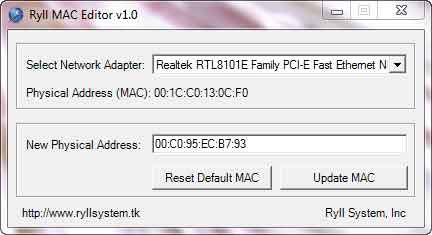
Manually changing the MAC address is bit complicated. The easiest way is to use the free application Ryll MAC Editor, which is simple and powerful enough to modifying the MAC address of your system.

How to use Ryll MAC Editor to change the MAC address?

After installation, run the program. From the dropdown list, select your network adapter. Now, choose Update MAC and restart your laptop or computer. That’s it.
Ryli-MAC-Editor
NOTE: You can always bring back to the original MAC address by clicking the Reset Default MAC button.
Ryll MAC Editor is compatible with Windows XP, Vista, and Windows 7 and it is completely clean. You can download it at here for free.

Plain Sight lets you encrypt and hide sensitive file with in another file


If you want to secure important files from praying eyes, here is a very simple and extremely easy to use utility Plain Sight that allows you to hide the contents of a file with in another file.
The file is encrypted using a 256 bit algorithm which is then hidden within the target file.Plain-sight
The target file could be anything from a JPEG to MP3 or even a text file. So you could basically hide files in just about anything without hampering the target file.
However, to be able to extract the encrypted data, you need the unlock file that was created when encrypting the file.
Moreover, the data can also be encrypted using a password which is optional.
Plain Sight works well with Windows XP through Windows 7 and is completely clean (Check thisVirustotal link). Required .NET Framework 3.5
You can download Plain Sight (515 Kb) from here.

RT Seven Lite helps you tweak & customize Windows 7 setup ISO file


Are you looking for a way to customize and tweak your Windows 7 setup ISO file? Here is a freeware tool, RT Seven Lite to help you. This tool is similar to nLite (for XP) and vLite (for Vista) and is more user-friendly and easy to use.
With this tool you can add wallpaper, themes, icons, integrate updates, drivers, and remove unwanted applications like default drivers, gameslanguage packs, etc from Windows 7 setup ISO file.rt-7lite
More over you can create unattended installation CD by integrating product key, change UI language, Time zone, etc.
RT Se7en Lite needs the following applications installed on your system before you start customizing.
1. WAIK – Windows Automated Installation Kit (AIK) for windows 7
2. . NET Framework 3.5
3. Adobe Flash Player ActiveX
4. VMware Workstation 7.0 or Virtual PC (optional) (For testing your customized OS virtually)
5. Supported Host Operating Systems: Windows 7, Server 2003, Windows Vista, Windows Server 2008

Saturday, November 26, 2011

Simple Way to Find Router Default Passwords


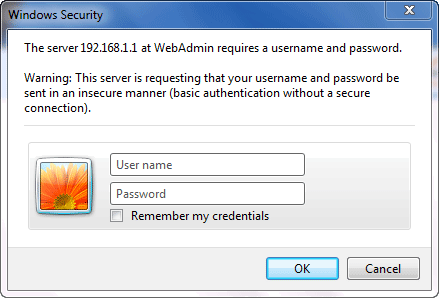
Want to know your Router’s default password and username? Usually, it can be seen on the backside of the router. But, unfortunately if it is not there, then how you can find it. Router password is necessary if you want to make any changes in your Router settings, for example, to change the administrative password to improve the security, etc.Win-Security
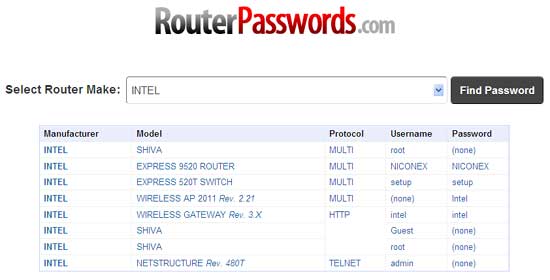
There is a very simple way to find a router’s default password. Just enter at RouterPasswords.com, select your Router make from the dropdown list, and click “Find Password” button. It will list all available models with their default username and password.
Routerpassword-finder
This is a quite useful service, especially for technicians to find default passwords used not only onrouters, but also on default web loginsCCTV systems, and other electronic devices.
Note: RouterPasswords is the largest free online database of default router passwords driven by the online community. You can also contribute, if you know a password, which is not listed on RouterPasswords.
Note: If you had changed the default router password, then you can reset it to default by pressing the reset button (shown at backside) for about 10 to 30 seconds.

Simple Way to Check Who is Accessing Your Wi-Fi Connection

Accessing the internet wirelessly at your home is very convenient, but securing your router and wireless connection is very important. Not doing so could allow unknown people to gain access your network, take over your bandwidth, and leave you with a very slow Internet connection. So, if you are suspecting that someone is accessing your Wi-Fi network connection, here is how you can detect them.
Before going to the subject, you should remember that even if you have strong password for your Wireless Network, there are several loopholes to gain access your connection. So check it with a free tool called Wireless Network Watcher.
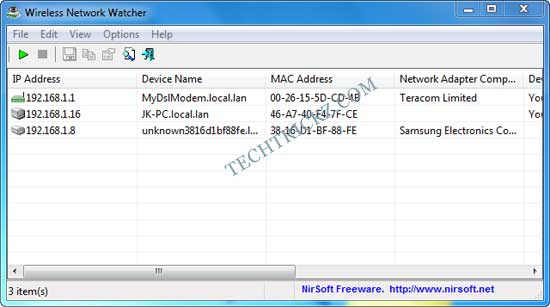
Wireless-network-watcher
Wireless Network Watcher is a tiny, portable tool and works on all Windows systems (32bit/64bit), and allows you to scan your network to find who is currently using your connection.

How to use Wireless Network Watcher?

Just download (250KB) it, extract, and run it. It will scan and list all devices name, its MAC address, IP address, manufacturer name, etc quickly (currently accessing your Wi-Fi).
WNW-option
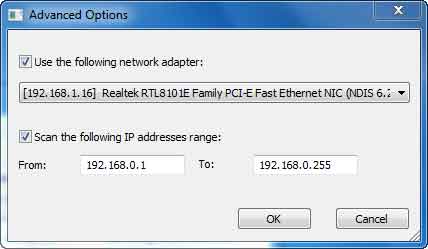
From the advanced option (Option – Advanced Option), you can scan for a given IP address range and Network adaptor. After finishing the scanning, the result can be saved as html, text or xml file for future references.

Benefit of using Wireless Network Watcher

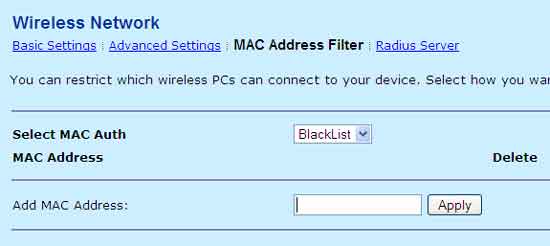
You can use the information provided by this tool to block the unauthorized user accessing your internet. For example, in your router settings you can enable ‘Wireless MAC Filter’ to filter out suspected MAC address, hide your device name, or use more secure WPA2 encryption instead of weaker WEP, etc.
MAC-address-filter
Note: Scan with it at different times, because it can only detect currently (live) accessing devices.
Wireless Network Watcher can be downloaded free at source here.