Sometimes little things can be the most annoying in our daily life, for example, typing errors that need to manually correct while composing an email message. If you’re looking for a simple solution to that, here is how to auto-correct typing errors of some common words and auto-capitalize the first letter in Gmail.
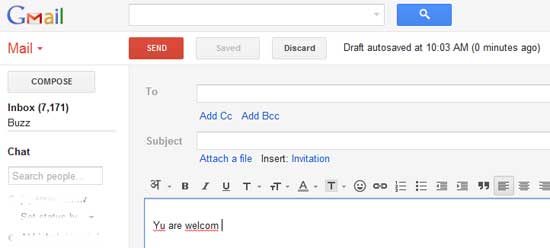
Before going to the subject, assume that you are using Google Chrome to open your Gmail account. Install ezAutoCorrect for Gmail from Chrome Web Store. It’ll do the hard work of auto-correcting common errors for you.
Before going to the subject, assume that you are using Google Chrome to open your Gmail account. Install ezAutoCorrect for Gmail from Chrome Web Store. It’ll do the hard work of auto-correcting common errors for you.
For example, the extension will convert ‘teh’ to ‘the’, ‘friend’ to ‘friend’, ‘ur’ to ‘you are’, etc and lets you add further entries to its list.
It can also automatically capitalize the first letter after a full stop. This option is disabled by default. Enable it from the extension option page.
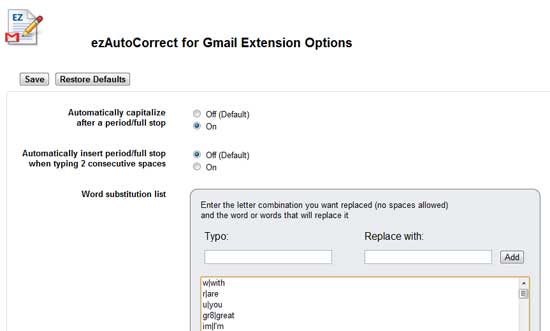
From the extension options page, you can also create your own word substitution. For example, create different signatures where you type sig1 and the first line of the signature is automatically inserted.
From the extension options page, you can also create your own word substitution. For example, create different signatures where you type sig1 and the first line of the signature is automatically inserted.
Download ezAutoCorrect for Gmail from Chrome Web Store.


